
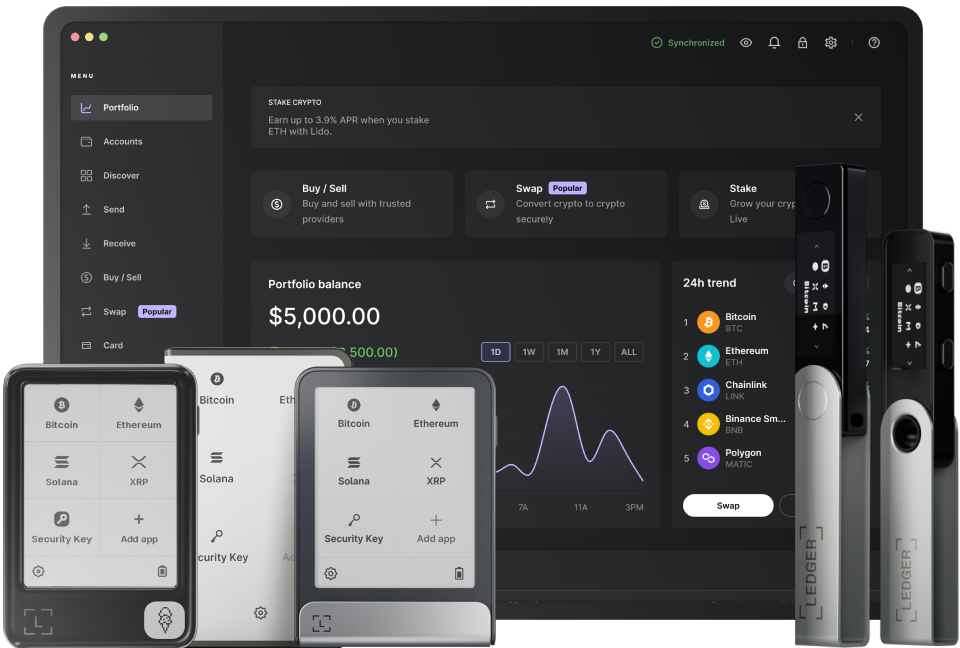
Connecting your Ledger device to MyEtherWallet (MEW) is a crucial step for securely managing your Ethereum and ERC-20 tokens. This process not only enhances the security of your digital assets but also provides a user - friendly interface for conducting transactions. To start, you need to ensure that your Ledger device is properly set up and updated. First, power on your Ledger device and follow the on - screen instructions to set up a PIN and recovery phrase. These are essential for protecting your wallet. Make sure to write down the recovery phrase on paper and store it in a safe place. Once the basic setup is complete, update the firmware of your Ledger device to the latest version. This can be done through the Ledger Live application, which acts as a central hub for managing your Ledger device.
The next step is to install the Ethereum app on your Ledger device. Open the Ledger Live application on your computer. Navigate to the Manager section within the app. Here, you'll find a list of available apps for your Ledger device. Search for the Ethereum app and click on the Install button. The installation process may take a few minutes depending on your internet speed. During this time, keep your Ledger device connected to your computer via USB cable and follow any prompts that appear on both the device screen and in the application. After the installation is complete, you're one step closer to connecting it to MEW.
Now, it's time to access MyEtherWallet (MEW). Open your web browser and go to the official MyEtherWallet website. Ensure that you're using a secure and up - dated browser to avoid any potential security risks. Once on the MEW homepage, click on the "Access My Wallet" button. Among the various wallet access options available (such as Keystore File, Private Key), select "Ledger". This indicates to MEW that you'll be using your Ledger device to access your wallet. A pop - up window will appear, asking you to connect your Ledger device if it's not already connected. Make sure that your Ledger device has been unlocked with its PIN and that the Ethereum app is open on it.
If everything is set up correctly so far, MEW will attempt to establish a connection with your Ledger device. You may need to confirm certain actions on your Ledger device's screen during this process, such as allowing MEW to access your wallet information. Once the connection is established successfully, MEW will display all the Ethereum and ERC - 20 tokens associated with your Ledger wallet. You can now view your account balance and start conducting transactions securely within the MEW interface. It's important to note that whenever you want to make a transaction from MEW using your Ledger device, you'll need to confirm each transaction on the Ledger device itself. This adds an extra layer of security, as it ensures that only you (with access to the physical device) can authorize transactions.
In case you encounter any issues during the connection process between your Ledger device and MEW, there are several troubleshooting steps you can take. First, check if all the software components are up - dated – both the Ledger Live application and the Ethereum app on your device should be running their latest versions. Also, ensure that there are no conflicts with other browser extensions that might be interfering with the connection. If the problem persists, reach out to the official support channels of both Ledger and MyEtherWallet. They have dedicated teams ready to assist users with any technical difficulties. By following these steps carefully, you can enjoy the seamless and secure experience of using your Ledger device with MyEtherWallet for all your Ethereum - related activities.
TAG: Ledger your device Ethereum app connection access up MEW MyEtherWallet