
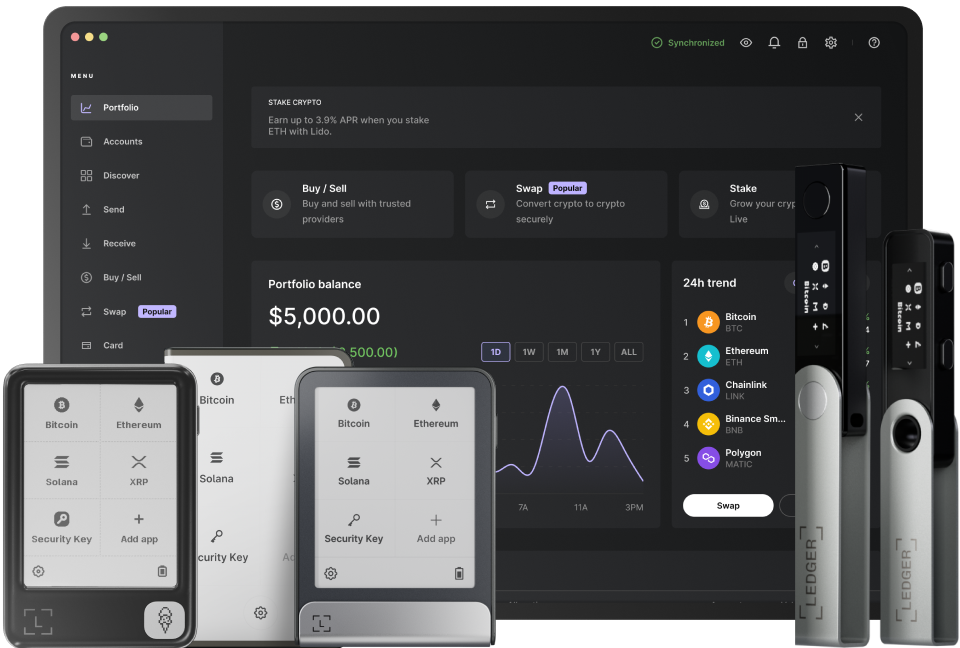
Clearing the cache and app data in Ledger Live can be a crucial step to ensure the smooth operation of the application. Over time, the cache accumulates temporary files and data, which can slow down the app or cause it to malfunction. When you clear the cache, you are essentially removing these unnecessary files, allowing the app to run more efficiently. App data, on the other hand, includes user - specific settings, preferences, and stored information. Sometimes, this data can become corrupted, leading to issues such as incorrect balance displays or problems with transaction history.
Before you start the process of clearing the cache and app data in Ledger Live, it's important to take some precautions. First, make sure you have a secure backup of your wallet. This is because clearing app data will reset your settings and potentially remove some stored information. You can use the backup phrase provided during the wallet setup to restore your wallet if needed. Also, ensure that your Ledger device is properly connected and recognized by your computer or mobile device. This will prevent any potential issues during the clearing process.
For desktop users, the process of clearing the cache and app data in Ledger Live varies depending on the operating system. On Windows, you need to locate the application data folder. Usually, it can be found in the "AppData" directory under your user profile. Navigate to "Roaming" and then find the "Ledger Live" folder. Here, you can delete the cache folder which contains all the temporary files. To clear app data, you may need to uninstall and reinstall Ledger Live. However, remember to back up your wallet before doing so.
If you are using a Mac, the process is slightly different but equally straightforward. First, go to the "Go" menu in the Finder and select "Go to Folder". Enter "~/Library/Application Support/Ledger Live" and press Enter. In this folder, you can find the cache and data files. Delete the cache folder to clear the temporary files. Similar to Windows users, if you want to completely clear app data, you can uninstall and reinstall the application after backing up your wallet. This will ensure that all user - specific settings are reset.
Mobile users also have options to clear the cache and app data in Ledger Live. On Android devices, go to the "Settings" app on your phone. Then, find the "Apps" or "Application Manager" section. Locate Ledger Live in the list of installed apps. Tap on it and then select "Storage". Here, you will see options to clear the cache and clear the app data separately. Clearing just one or both can help resolve various issues with the app. On iOS devices, things are a bit different. You can't directly clear the cache and app data in the same way as Android. Instead, you need to uninstall Ledger Live and then reinstall it from the App Store. But again, make sure your wallet backup is secure before taking this step.
After clearing the cache and app data, it's important to test if the issues you were facing have been resolved. Open Ledger Live and check if it loads faster and functions correctly. If you still encounter problems, you may need to contact Ledger support for further assistance.
TAG: Ledger Live your wallet app cache data clear clearing files